
How to Play The Last of Us Part I on Mac (Best Options Compared)
- Sven Frese
- Games
- March 25, 2025
The Last of Us Part I is the definitive way to experience Joel and Ellie’s heartbreaking journey—a complete remake with stunning visuals and refined gameplay that still hits just as hard as it did in 2013. It’s one of gaming’s greatest stories, rebuilt from the ground up. Sony and Naughty Dog didn’t bring it to Mac, but the emotional rollercoaster is still within reach.
Mac users have three solid options: CrossOver (a compatibility layer that runs Windows games directly on your Mac), Whisky (a free alternative to CrossOver), or CloudDeck (cloud gaming that streams the game from a remote PC). Here’s how they compare for The Last of Us Part I.
Option 1: CrossOver
CrossOver is a compatibility layer that lets you run Windows games directly on your Mac—no Boot Camp, no Windows license, no virtual machine. It translates Windows commands to macOS in real-time, so games run natively on your hardware.
How does The Last of Us Part I perform?
This is one of the most demanding PC ports ever released, so temper your expectations. An M4 Pro with 24GB delivers around 50 FPS at Medium settings with FSR Balanced—playable, but not buttery smooth. Push settings higher on the same Mac and you’ll drop to 38 FPS. An M3 Pro with 18GB struggles at 35 FPS even at Low settings with FSR enabled. This game needs serious hardware.
Quick reference:
- ✅ M4 Pro 24GB — 50 FPS, Medium settings (FSR Balanced)
- ⚠️ M4 Pro 24GB — 38 FPS, Medium-High (FSR Quality)
- ⚠️ M3 Pro 18GB — 35 FPS, Low settings (FSR)
- ❌ 8GB RAM Macs — Too demanding
How to get started:
- Download CrossOver ($74/year, 14-day free trial)
- Install Steam through CrossOver
- Purchase and install The Last of Us Part I
- Enable FSR Quality mode and use Medium-Low settings
Tips: This is one of the most demanding PC ports ever made. Enable Frame Generation if available for smoother gameplay.
Option 2: Whisky (Free Alternative)
If you’d rather not pay for CrossOver, Whisky offers similar functionality for free. It’s built on the same Wine technology that powers CrossOver, but it’s open-source and community-maintained.
Performance: Expect similar results to CrossOver—the underlying technology is the same.
The trade-off: Whisky requires more manual setup. You may need to install additional Windows components, troubleshoot shader compilation issues, and tweak settings yourself. It’s a great option if you’re comfortable with technical tinkering, but CrossOver’s polish might be worth $74/year if you value convenience.
How to get started:
- Download Whisky (free)
- Create a new “bottle” (Whisky’s term for a Windows environment)
- Install Steam inside the bottle
- Install The Last of Us Part I through Steam
- Troubleshoot as needed (check the Whisky Discord for help)
Option 3: CloudDeck (Cloud Gaming)
If your Mac doesn’t have the horsepower for CrossOver, or you just want to skip the compatibility headaches, CloudDeck offers a completely different approach: cloud gaming.
Instead of running the game on your Mac, CloudDeck runs it on our high-performance servers and streams the video to your screen. Your Mac just needs to display the stream, so even an 8GB MacBook Air works perfectly.
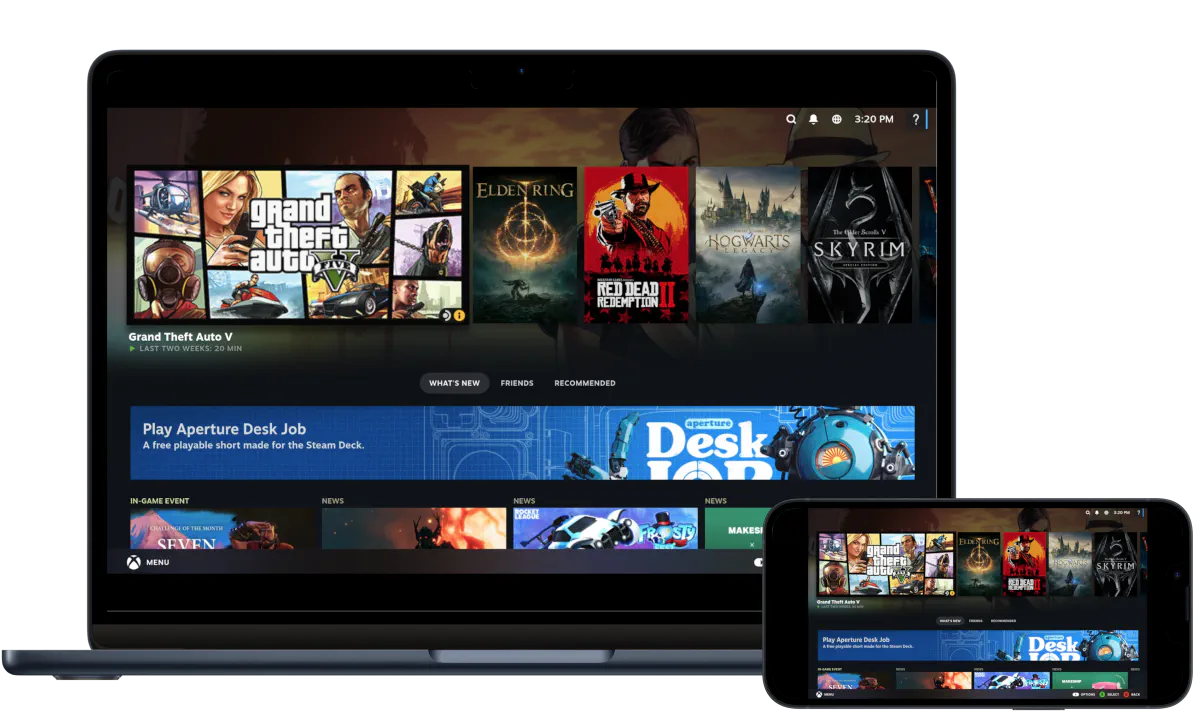
Performance: 60 FPS at 1080p, High settings (runs on our cloud servers).
Best for:
- 8GB RAM Macs
- Macs with limited storage (game needs 100GB locally)
- Anyone who wants consistent 60 FPS without compromises
Requirements: Any Mac and a stable internet connection (15+ Mbps recommended).
How to get started:
- Sign up for CloudDeck ($19.99/month, cancel anytime)
- Connect using Moonlight or your browser
- Install The Last of Us Part I from your Steam library
- Play immediately—no compatibility tweaks needed
Which Option Should You Choose?
| Your Situation | Best Choice |
|---|---|
| M4 Pro/Max Mac, want to run locally | CrossOver |
| Tech-savvy, prefer free solutions | Whisky |
| Any Mac, want consistent 60 FPS | CloudDeck |
FAQ
Why isn’t there a Mac version?
Sony never ported it. Most Windows games use DirectX, which doesn’t run natively on macOS.
Can I use my Steam saves?
Yes—all three options work with Steam Cloud saves.
Last updated: March 2026.