How to Play Romestead on Mac (Best Options Compared)
- Sven Frese
- Games
- May 28, 2026
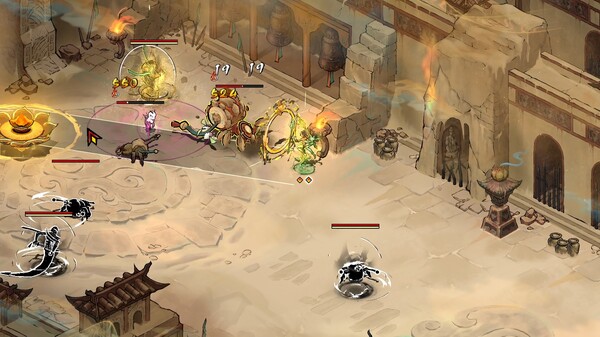
Romestead has been pulling in big numbers since it hit Early Access. The pitch is fun: Rome has fallen, the dead are walking, and you’ve got up to 8 players trying to rebuild civilization, fight off zombie hordes, restore the old gods, and maybe find time to farm something. It’s part survival, part city builder, part co-op chaos.
No Mac version though. Beartwigs built Romestead for Windows only. If you want to play it on a Mac, here are your options.
Option 1: CrossOver
CrossOver lets you run Windows games directly on your Mac without needing Windows or Boot Camp. It works as a compatibility layer, translating Windows calls to macOS on the fly.
How does Romestead perform?
Romestead just hit Early Access, so community compatibility reports are still coming in. CrossOver compatibility for new games like this takes a bit of time to settle as players test different configurations.
The best place to track how it’s running is the ProtonDB page for Romestead , which covers both Linux and Mac-via-Wine compatibility. As reports build up, you’ll get a clearer picture of what works and what needs tweaking.
How to get started:
- Download CrossOver ($74/year, 14-day free trial)
- Install Steam through CrossOver
- Purchase and install Romestead
- Check the Romestead Steam forums for Mac-specific tips
Option 2: Whisky (Free Alternative)
Whisky is a free, open-source alternative that uses the same Wine technology as CrossOver. You get similar compatibility without the subscription cost, but you’ll handle more of the setup yourself.
For early access games like Romestead, Whisky and CrossOver tend to track each other. If one works well, the other usually does too, give or take some manual configuration.
How to get started:
- Download Whisky (free)
- Create a new bottle for your Windows environment
- Install Steam inside the bottle
- Install Romestead and launch it
- Hit the Whisky Discord or ProtonDB if you run into issues
Option 3: CloudDeck (Cloud Gaming)
CloudDeck streams Romestead from our cloud servers to your Mac. The game runs remotely, your Mac displays it. This completely bypasses Mac compatibility concerns since the game runs on Linux with Proton on our end, not on your hardware.
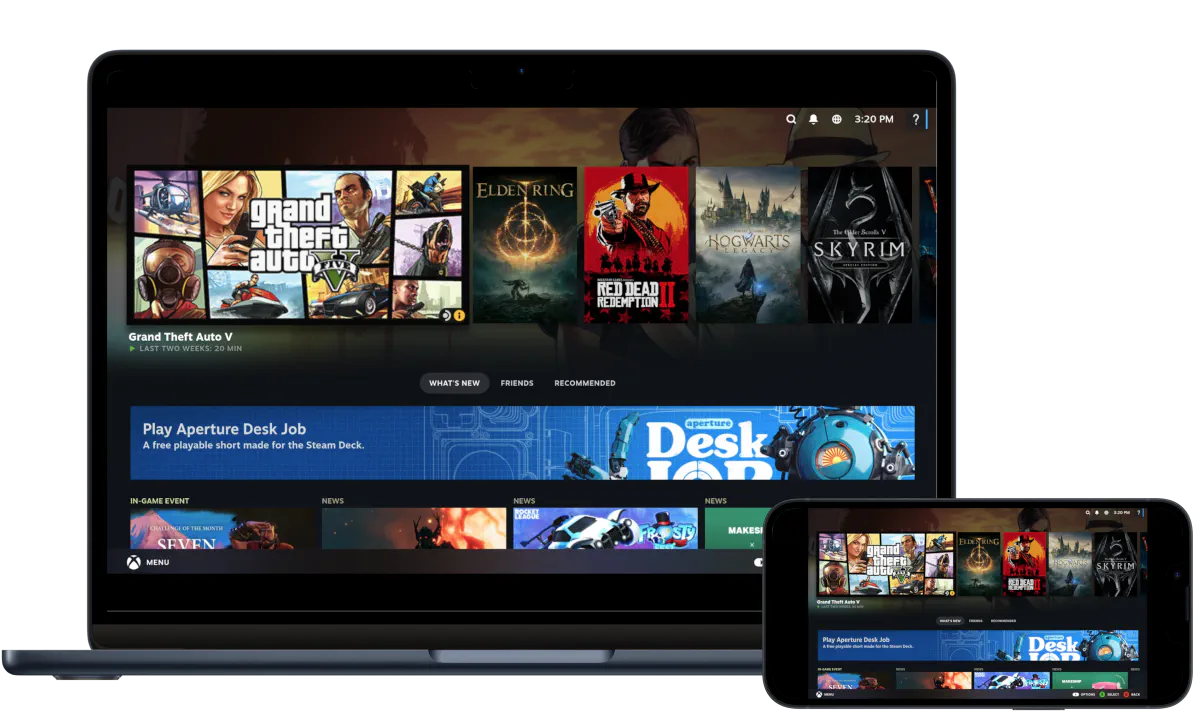
Co-op games like Romestead work well with CloudDeck because the server connection is separate from the streaming connection. You connect to the game server the same way any Windows player would.
Best for:
- Macs with 8GB RAM
- Anyone who’d rather skip the CrossOver setup
- Playing co-op right now without waiting for compatibility reports to mature
Requirements: Any Mac and a stable internet connection (15 Mbps or more recommended).
How to get started:
- Sign up for CloudDeck ($19.99/month, cancel anytime)
- Connect using Moonlight or your browser
- Install Romestead from your Steam library
- Jump into a session with friends
Which Option Should You Choose?
| Your Situation | Best Choice |
|---|---|
| Powerful Mac, enjoy tinkering | CrossOver |
| Want free, happy to troubleshoot | Whisky |
| Want to play with friends right now | CloudDeck |
| Mac with limited RAM | CloudDeck |
FAQ
Why no Mac version?
Romestead is in Early Access and built for Windows. The developers at Beartwigs haven’t announced a Mac port. Most Windows games use DirectX, which doesn’t run natively on macOS.
Does co-op work?
Yes. Romestead’s multiplayer is server-based, so it works fine on CloudDeck. CrossOver and Whisky should also support co-op once compatibility reports settle, as there’s no known anti-cheat blocking it.
Can I play with Windows friends?
Yes, cross-play between CloudDeck (which connects as a standard Windows game session via Proton) and regular Windows players works normally.
Where can I track compatibility updates?
Keep an eye on ProtonDB for community reports on how Romestead runs via Wine and Proton.
Last updated: May 2026.