How to Play MECCHA CHAMELEON on Mac (Best Options Compared)
- Sven Frese
- Games
- June 12, 2026
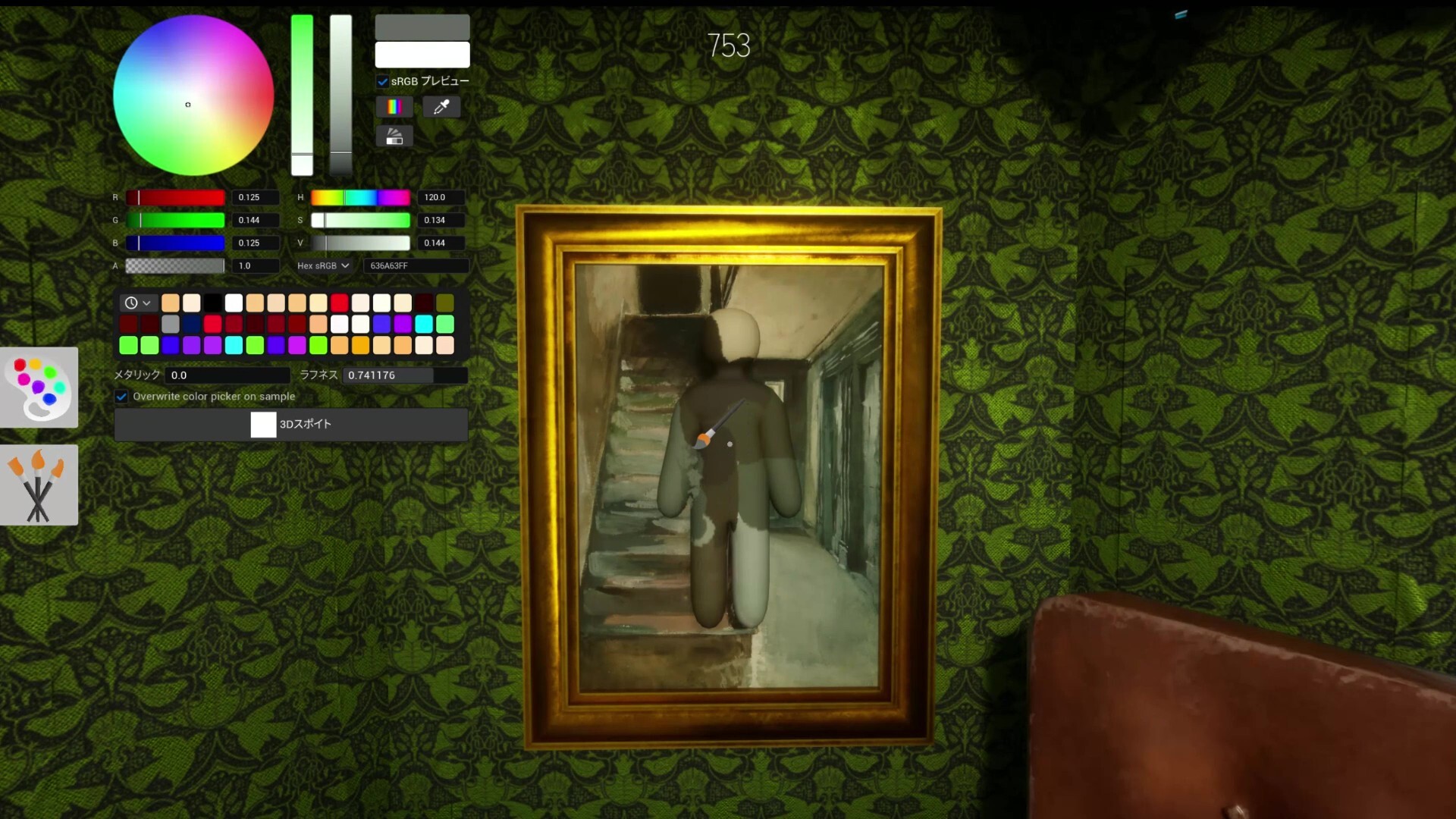
MECCHA CHAMELEON is the hide-and-seek party game taking over Steam. You paint your white body to blend into the stage and try to fool the Seeker, while they hunt you down. It’s chaotic, funny, and weirdly addictive. Only problem: it’s Windows-only on Steam, and there’s no Mac version.
Mac users have three options: CrossOver (a compatibility layer that runs Windows games on your Mac), Whisky (a free open-source alternative), or CloudDeck (cloud gaming that streams the game from a remote PC). Here’s how they compare.
Option 1: CrossOver
CrossOver lets you run Windows games directly on macOS without Boot Camp or a Windows license. It translates Windows instructions to macOS in real-time, so the game runs on your own hardware.
CrossOver compatibility depends on how well the game runs under Wine. Check ProtonDB for the latest community reports. If you see Gold or Platinum ratings there, CrossOver is likely to give you a similar experience.
How to get started:
- Download CrossOver ($74/year, 14-day free trial)
- Install Steam through CrossOver
- Purchase and install MECCHA CHAMELEON
- Jump into a match
Option 2: Whisky (Free Alternative)
Whisky is built on the same Wine technology that powers CrossOver, but it’s free and open-source. Performance is similar under the hood, but you’ll be doing more of the setup work yourself.
Whisky uses the same Wine technology as CrossOver. If ProtonDB shows Gold or Platinum ratings, Whisky should work similarly. Just expect more manual troubleshooting compared to CrossOver.
How to get started:
- Download Whisky (free)
- Create a new bottle
- Install Steam inside the bottle
- Install and run MECCHA CHAMELEON
- Check the Whisky Discord if you run into issues
Option 3: CloudDeck (Cloud Gaming)
If you’d rather skip the compatibility guesswork entirely, CloudDeck takes a different approach. Instead of running the game on your Mac, it runs on remote servers and streams the video to your screen. Your Mac only needs to handle the stream, so even lower-end Macs work fine.

Requirements: Any Mac and a stable internet connection (15+ Mbps recommended).
How to get started:
- Sign up for CloudDeck ($19.99/month, cancel anytime)
- Connect using Moonlight or your browser
- Install MECCHA CHAMELEON from your Steam library
- Start playing right away
Which Option Should You Choose?
| Your Situation | Best Choice |
|---|---|
| Tech-savvy Mac user, OK with some setup | CrossOver |
| Want a free option and don’t mind tinkering | Whisky |
| Any Mac, want it working right now | CloudDeck |
FAQ
Why isn’t there a Mac version?
The developer hasn’t released a macOS build. Most Windows games use DirectX, which doesn’t run natively on macOS.
Does multiplayer work?
CloudDeck plays Windows games via Proton and there’s no anti-cheat blocking multiplayer, so public matches should work fine. For CrossOver and Whisky, check ProtonDB for the latest community multiplayer reports.
Can I use my existing Steam account?
Yes, all three options use your existing Steam account and library.
Last updated: June 2026.