Can You Play BeamNG.drive on Mobile? Here Are Your Options
- Sven Frese
- Games
- April 8, 2026
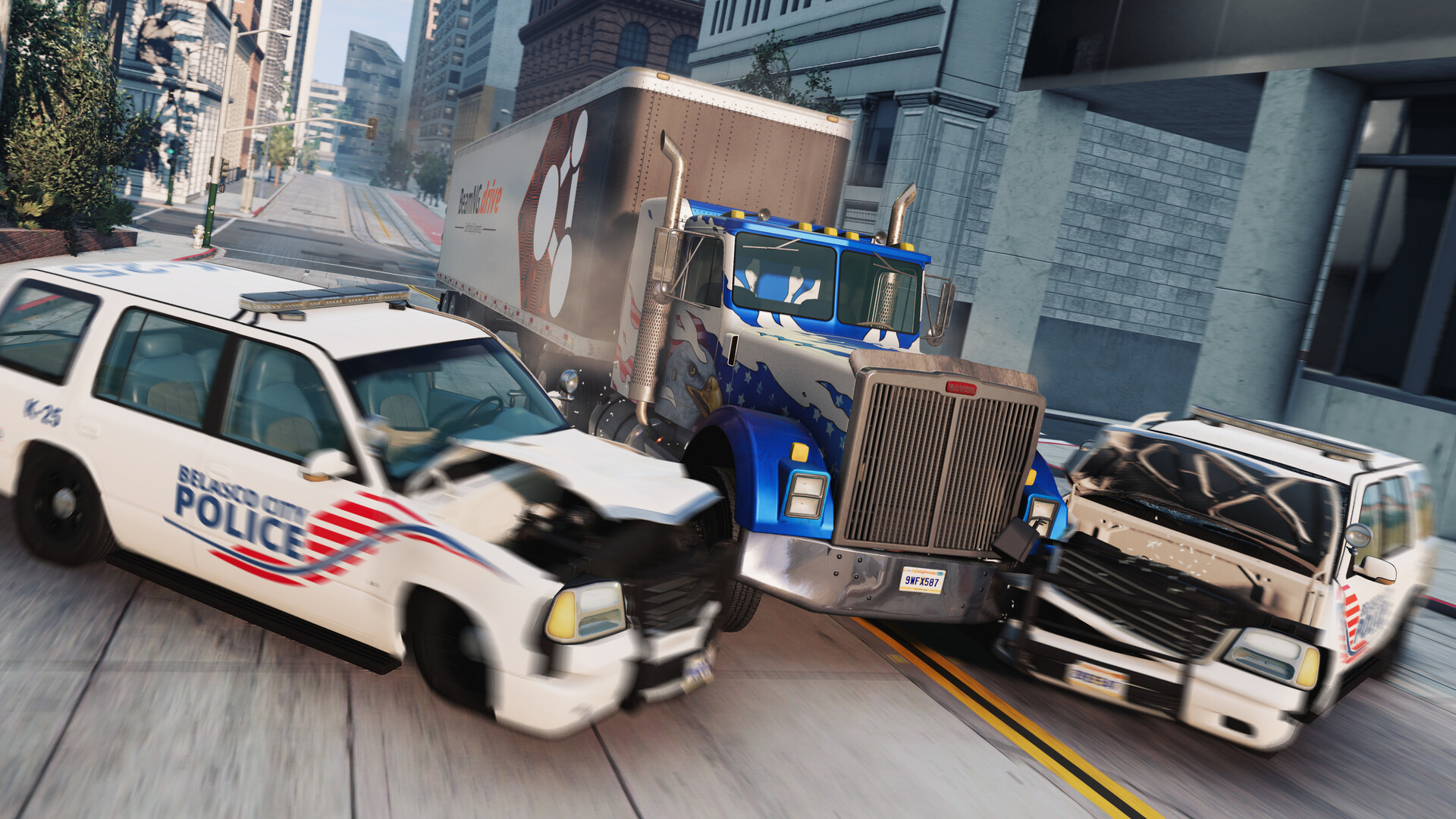
BeamNG.drive is one of the most popular vehicle simulation games on PC, known for its incredibly realistic soft-body physics and crash simulations. But it was never released on mobile. If you’re wondering whether you can play BeamNG.drive on your phone or tablet, the short answer is: not natively — but there are some surprisingly good workarounds.
Is There a Native BeamNG.drive Mobile Version?
No. BeamNG has not released a mobile version of BeamNG.drive, and there are no announced plans to do so. Any app claiming to be “BeamNG Mobile” in unofficial app stores is fake and should be avoided.
Option 1: x86 Emulators on Android
A newer category of Android apps can emulate x86 Windows environments directly on your phone. Apps like Winlator, GameHub, and Mobox attempt to run PC games on Android hardware by translating x86 instructions in real-time.
The reality for BeamNG.drive:
BeamNG.drive is actually one of the more impressive success stories for Android x86 emulation. Users have reported getting the game running on Winlator with surprisingly good results:
- On flagship phones (Snapdragon 8 Gen 2/3, Samsung S25 Ultra), users report 60-100 FPS with older versions of the game
- The game requires a Snapdragon chipset for Vulkan driver compatibility — MediaTek devices may not boot the game
- Older versions (0.23-0.34) tend to run more reliably than the latest builds
- Thermal throttling is the main issue — performance degrades over longer sessions as your phone heats up
- You’ll need a phone with at least 8GB of RAM
Verdict: BeamNG.drive is one of the games that actually works reasonably well through x86 emulators on high-end Android phones. If you have a recent Snapdragon device, it’s worth trying — but expect some tinkering with versions and settings.
Option 2: Remote Play from Your Own PC
If you already own a gaming PC, you can stream BeamNG.drive to your phone using apps like Steam Link or Moonlight. This is free but requires your PC to be powered on and connected to the same network (or set up for remote access).
Best for: People who already have a capable gaming PC at home and want to play from another room or location.
Option 3: Cloud Gaming
Cloud gaming services run the game on a remote high-performance PC and stream the video to your device. Your phone only needs to handle the video stream and send your inputs back.
How it works: You connect to a cloud PC, install your games from Steam or any other store, and play via a streaming app. The heavy lifting happens on the server side.
The reality for BeamNG.drive:
- BeamNG.drive runs at full quality with no compromises — the server has the hardware for complex physics simulations
- No thermal throttling or version compatibility issues to worry about
- Input latency depends on your connection; on a stable home Wi-Fi network, it feels nearly native
- A controller or steering wheel setup is recommended for the best experience
Important note on connectivity: Cloud gaming streams a lot of data — typically 10-20 GB per hour at 1080p. On a home Wi-Fi connection, this works great. On mobile data, you may experience stuttering, latency spikes, and high data usage. For the best experience, stick to Wi-Fi.
CloudDeck
CloudDeck is a cloud gaming service that gives you a full Windows gaming PC in the cloud. Unlike some services that limit you to a specific game library, CloudDeck lets you install any game — including BeamNG.drive from your own Steam library.
Why CloudDeck works well for this:
- Full PC access — install BeamNG.drive from Steam, add mods, adjust settings
- High-performance hardware — handles BeamNG’s demanding physics engine without breaking a sweat
- Works on any device — connect from your Android phone, tablet, laptop, or TV
- $19.99/month — no long-term commitment, cancel anytime
Getting started:
- Create your CloudDeck account
- Connect with Moonlight on your phone
- Install BeamNG.drive on your CloudDeck
- Pair a Bluetooth controller and play
Which Option Should You Choose?
| Approach | Performance | Cost | Best For |
|---|---|---|---|
| x86 Emulators (Android) | Medium — works on flagship Snapdragon phones | Free | Tinkerers with high-end phones |
| Remote Play (Steam Link) | High — depends on your PC | Free | Existing gaming PC owners |
| Cloud Gaming (CloudDeck) | High — full PC quality | $19.99/mo | Best experience without a gaming PC |
BeamNG.drive is one of the rare games where x86 emulation on Android actually produces decent results — if you have the right hardware. But for a hassle-free experience at full quality with the latest game version, cloud gaming is still the most reliable option. If you want to give it a shot, try CloudDeck and start playing within minutes.