How to Play Anno 1800 on Mac (Best Options Compared)
- Sven Frese
- Games
- March 25, 2025
Anno 1800 is the city-builder that lets you build a sprawling industrial empire during the dawn of the modern age—manage production chains, colonize new worlds, and watch your cities grow into breathtaking Victorian metropolises. It’s dangerously addictive for strategy fans who love optimization puzzles. Ubisoft never ported it to Mac, but there are several ways to run your global trade empire from macOS.
Mac users have three solid options: CrossOver (a compatibility layer that runs Windows games directly on your Mac), Whisky (a free alternative to CrossOver), or CloudDeck (cloud gaming that streams the game from a remote PC). Here’s how they compare for Anno 1800.
Option 1: CrossOver
CrossOver is a compatibility layer that lets you run Windows games directly on your Mac—no Boot Camp, no Windows license, no virtual machine. It translates Windows commands to macOS in real-time, so games run natively on your hardware.
How does Anno 1800 perform?
Anno 1800 runs well on Apple Silicon through CrossOver. An M2 Pro with 16GB delivers around 50 FPS at Medium settings with D3DMetal—smooth enough for managing your Victorian empire. An M2 Air with 16GB manages 40 FPS at Low-Medium with FSR enabled, which is fine for early-game play. Note that large cities will slow things down to around 25 FPS as the simulation intensifies—that’s normal for Anno.
Quick reference:
- ✅ M2 Pro 16GB — 50 FPS, Medium settings (D3DMetal)
- ✅ M2 Air 16GB — 40 FPS, Low-Medium (FSR)
- ⚠️ M2 Air 16GB — 25 FPS with large cities
- ❌ 8GB RAM Macs — Large cities will struggle
How to get started:
- Download CrossOver ($74/year, 14-day free trial)
- Install Ubisoft Connect through CrossOver
- Purchase and install Anno 1800
- Enable DX12 for best performance
Tips: CrossOver 24+ works out of the box with Anno 1800. Start in windowed mode if you experience fullscreen glitches.
Option 2: Whisky (Free Alternative)
If you’d rather not pay for CrossOver, Whisky offers similar functionality for free. It’s built on the same Wine technology that powers CrossOver, but it’s open-source and community-maintained.
Performance: Expect similar results to CrossOver—the underlying technology is the same.
The trade-off: Whisky requires more manual setup. You may need to install additional Windows components, troubleshoot shader compilation issues, and tweak settings yourself. It’s a great option if you’re comfortable with technical tinkering, but CrossOver’s polish might be worth $74/year if you value convenience.
How to get started:
- Download Whisky (free)
- Create a new “bottle” (Whisky’s term for a Windows environment)
- Install Ubisoft Connect inside the bottle
- Install Anno 1800 through Ubisoft Connect
- Troubleshoot as needed (check the Whisky Discord for help)
Option 3: CloudDeck (Cloud Gaming)
If your Mac doesn’t have the horsepower for CrossOver, or you just want to skip the compatibility headaches, CloudDeck offers a completely different approach: cloud gaming.
Instead of running the game on your Mac, CloudDeck runs it on our high-performance servers and streams the video to your screen. Your Mac just needs to display the stream, so even an 8GB MacBook Air works perfectly.
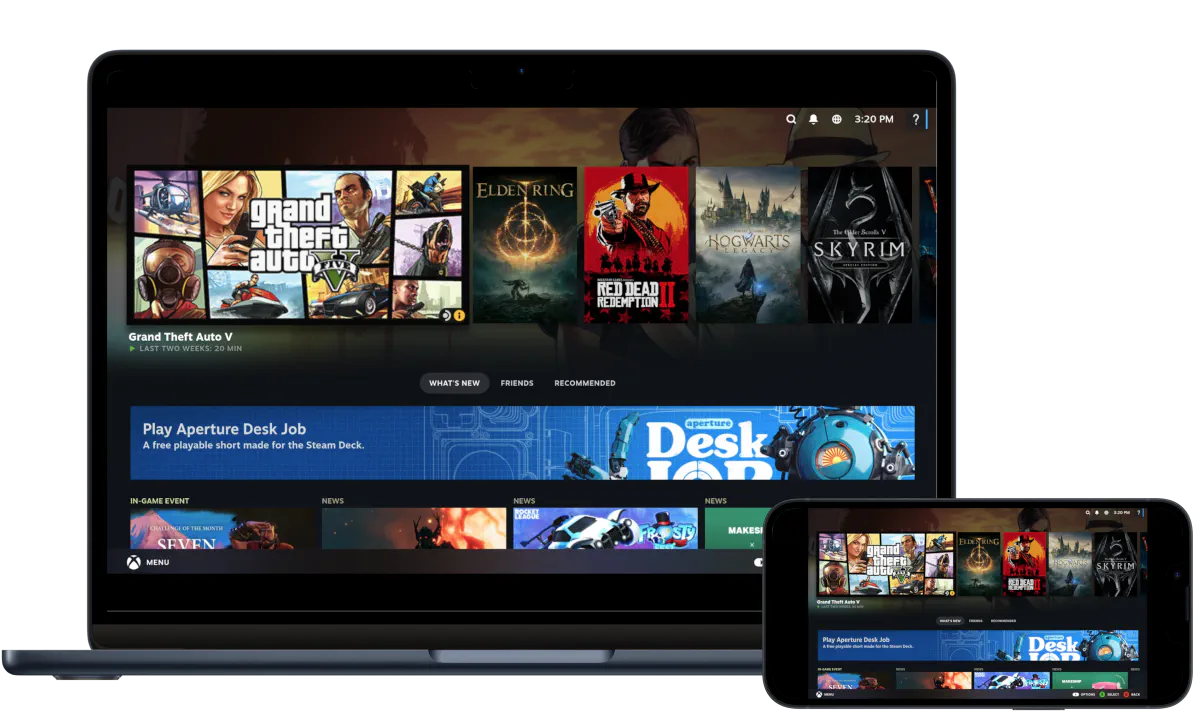
Performance: 60 FPS at 1080p, High settings (runs on our cloud servers).
Best for:
- 8GB RAM Macs
- Macs with limited storage (game needs 90GB with DLCs)
- Anyone who wants zero setup headaches
Requirements: Any Mac and a stable internet connection (15+ Mbps recommended).
How to get started:
- Sign up for CloudDeck ($19.99/month, cancel anytime)
- Connect using Moonlight or your browser
- Install Anno 1800 from your Ubisoft library
- Play immediately—no compatibility tweaks needed
Which Option Should You Choose?
| Your Situation | Best Choice |
|---|---|
| M2 Pro+ Mac, want to run locally | CrossOver |
| Tech-savvy, prefer free solutions | Whisky |
| Any Mac, want it to just work | CloudDeck |
FAQ
Why isn’t there a Mac version?
Ubisoft never ported it. Most Windows games use DirectX, which doesn’t run natively on macOS.
Can I use my Ubisoft saves?
Yes—all three options sync with Ubisoft Connect cloud saves.
Last updated: March 2026.